How to copy a YouTube transcript
You can copy the text by hand on YouTube, or copy all of it in one click with a free extension. It works when the video has subtitles.
Copy it by hand on YouTube
- Open the video and expand the description under the player.
- Press Show transcript. The text appears next to the video.
- Select the lines with the mouse and copy them.
This works without installing anything. In a long video, selecting everything takes time, and timestamps get mixed into the text. Button names can change when YouTube updates the page.
Copy it in one click with TranscribeClear
- Add TranscribeClear to Chrome or Firefox.
- Open a YouTube video and press Show text, or click the extension icon.
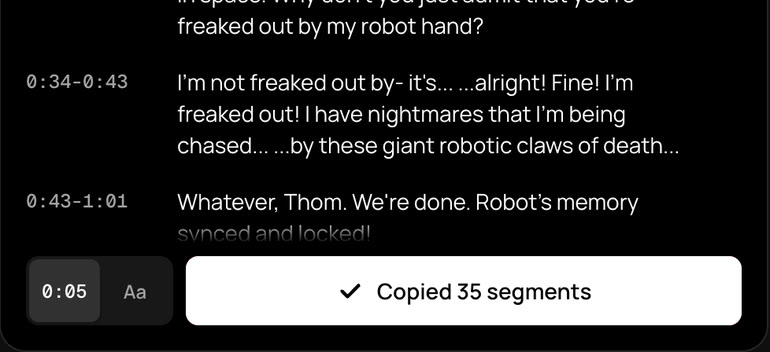
- Press the copy button in the panel. Choose whether you want timestamps in the settings.
You can also copy a single line. Paste the text into your notes, a document, or an AI chat.
If the video has no subtitles
The extension reads the text YouTube already has. A video without subtitles has no text to copy, and the panel tells you so.