How to save a YouTube transcript as a text file
The fastest way today is to copy the whole transcript and paste it into a text editor. TranscribeClear does not create the file by itself yet.
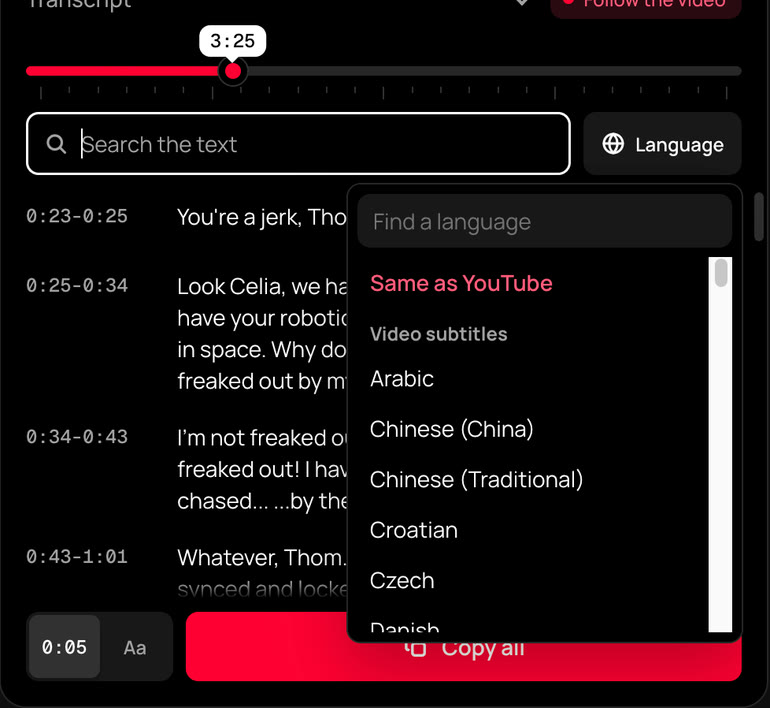
Save the transcript in four steps
- Add TranscribeClear to Chrome or Firefox and open the video.
- Press Show text and pick the subtitle language you need.
- Press the copy button in the panel.
- Paste the text into Notes, TextEdit, or Notepad, then save it as a TXT file.
Name the file after the video and add its link at the top, so you can find the source later.
Get the transcript in another language
- Open the language list in the panel.
- Pick a subtitle track of the video, or a language from YouTube auto translation.
- Copy the text again and save it as a separate file.
Auto translation is made by YouTube, so check important quotes and numbers against the video.
Use the text with care
Videos and their content belong to their authors. Use the text in ways the law and the author allow.